Save big on select book titles!

Get Started
Step-by-step guide to download our PDF books on any device
FAQs
How to download?
Click the download link, then save the PDF to your device.
Can I use iPad?
What about laptops?
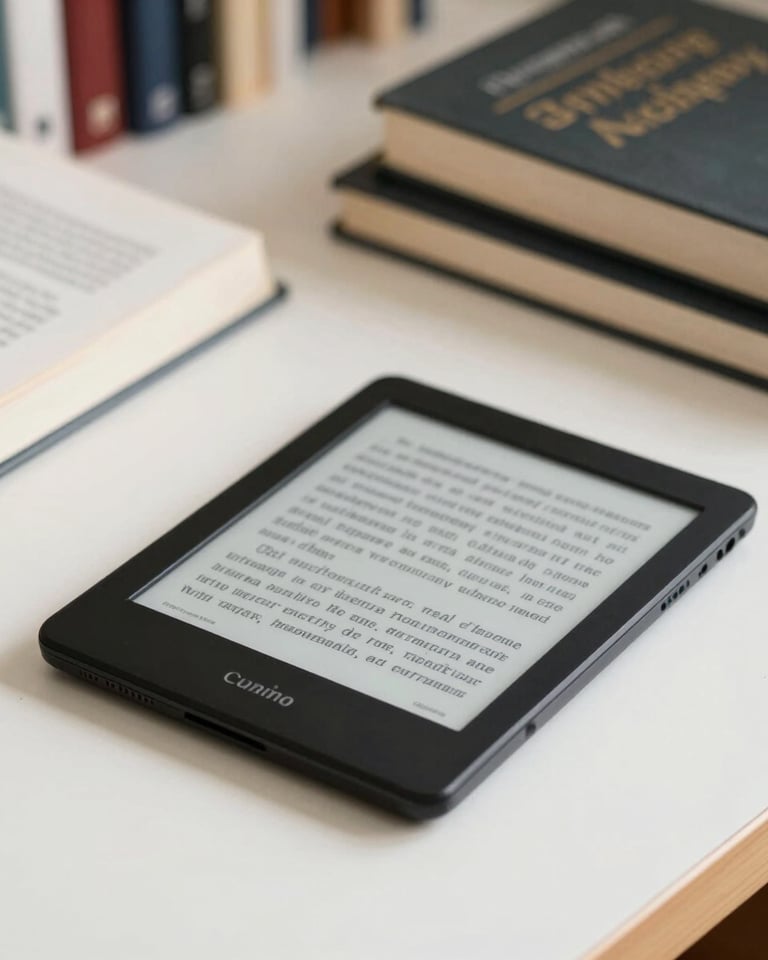
Can I use an eReader?
Is internet needed?
Yes, open the PDF in your iPad’s Books app or any reader.
On laptops, download the PDF and open it with Adobe Reader or your preferred PDF viewer.
Most eReaders support PDFs; transfer the file via USB or email to your device.
Internet is only needed to download; reading is offline.
How to Send Files to Your eReader
A Detailed Guide for Kindle, Kobo, and Nook Devices
Transferring files to your eReader allows you to enjoy digital books, documents, and personal content on your preferred device. Below is an expanded step-by-step guide for sending files to Kindle, Kobo, and Nook eReaders, including helpful tips and requirements for each platform.
Sending Files to Your Kindle
Download the Book: Save your desired book or document in PDF or ePub format to your computer. Note that Kindle natively supports PDF, but ePub files may require conversion or recent firmware updates.
Find Your Kindle Email Address: Go to Manage Your Content & Devices on Amazon, then navigate to Preferences and select Personal Document Settings to locate your unique Kindle email address. This is used to send personal documents directly to your device.
Email the Document: Attach the PDF or compatible file in a new email and send it to your Kindle email address. After a few minutes, open your Kindle, connect to Wi-Fi, and the document should appear in your library under Documents.
Additional Tips: Ensure your email address is on the approved sender list in your Amazon account. For large files, syncing may take extra time.
Sending Files to Your Kobo
Download the PDF: Save the PDF file to your computer. Make sure the file is unprotected (not DRM locked) so it can be transferred to your Kobo.
Connect via USB: Plug your Kobo device into your computer using a USB cable. Your ereader will display a prompt saying ‘Computer Detected’—press ‘Connect’ to proceed.
Locate the KOBOereader Drive: On your computer, the Kobo will appear as a removable drive named ‘KOBO ereader.’ On Mac, look in Finder under Locations; on Windows, check the file explorer.
Transfer the File: Drag and drop the PDF into the KOBOereader drive. You can organize files in folders for easier access.
Eject Safely: Right-click the KOBOereader drive and select ‘Eject’ before unplugging the device to prevent data corruption.
Access Your File: Once the transfer is complete, tap ‘My Books’ on your Kobo to locate and read the newly added document.
Sending Files to Your Nook
Download the File: Obtain the PDF or ePub file you wish to read. Both formats are supported by Nook devices.
Connect via USB-C: Use a USB-C cable to connect your Nook to your computer (Mac or Windows). The Nook will appear as a new drive in your file explorer.
Drag and Drop: Open the Nook drive and locate the Documents folder. Drag and drop your files into this folder to ensure proper organization and visibility on your device.
Eject and Disconnect: Safely eject the Nook from your computer and unplug the cable to avoid damaging the files.
Read Your Document: On your Nook, navigate to the ‘My Files’ section, find your document, and start reading.
Additional Notes: If you have trouble locating your files, ensure they are in the correct folder and check for any file protection settings.
These steps will help you easily transfer and access books or documents on your eReader. Always make sure your files are in the supported format and your device is updated to the latest firmware for optimal compatibility.
Help Desk


Questions about downloading? Reach out and we'll guide you step-by-step.